Why Your Church Might Want a NAS
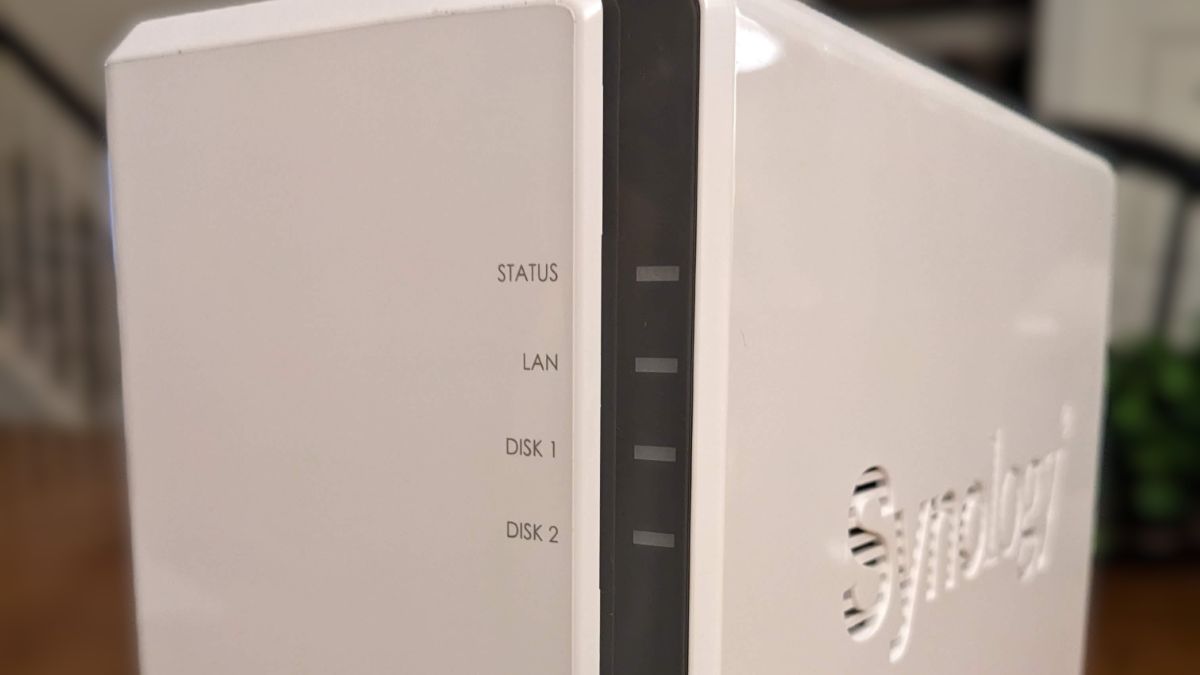
It seems that in the past several years just about every software service has moved to the cloud and adopted a subscription model: Microsoft Office, the Adobe Creative Suite, Quickbooks, etc. The idea of running your own server that's physically sitting in your facility might seem antiquated these days. However, there are still definitive, beneficial uses, particularly for the relatively inexpensive consumer network attached storage (NAS) devices that are now so popular and readily available.
In this article I want to give you some ideas of how you might benefit from a NAS based on ways I've used one at our church over the past several years.
Table of Contents
Media Server
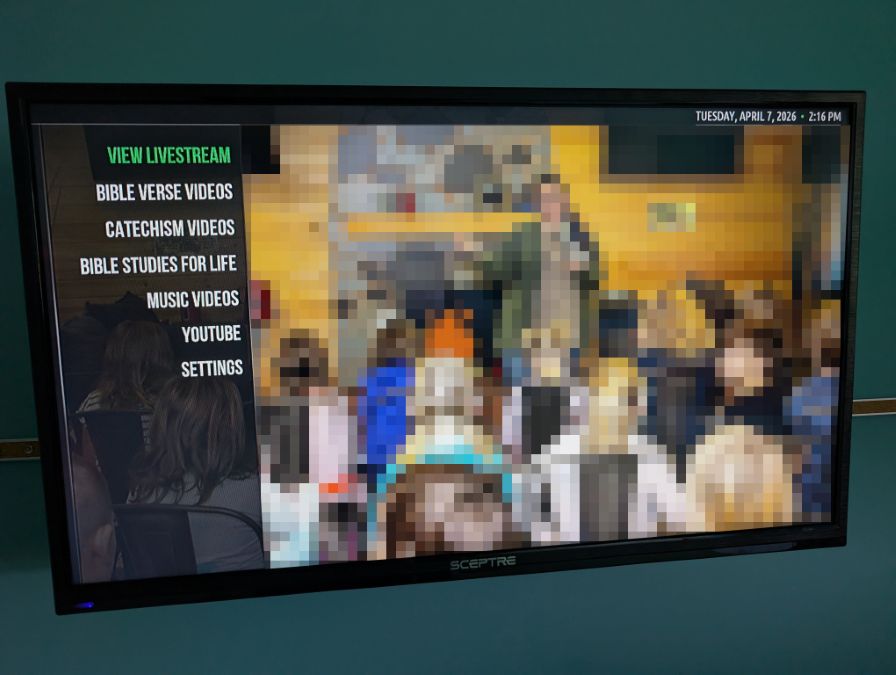
In some of our kids' ministry classrooms, we wanted to show some occasional videos on a TV but we didn't need the complication or flexibility of a full ProPresenter-style system. Instead, I opted for a cheap Android streaming box running KODI. KODI is an extremely customizable media player, and I was able to use it to make an interface where a volunteer can use a simple remote to navigate various folders of content. Where does KODI find those videos? On our NAS of course!
KODI (and many other Android media player apps) can access network sources to find files. Simply mapping a folder on the NAS to KODI allows it to be set up as a source location. This allows our staff to remotely add content to a single location that multiple TVs can then access. This is a huge timesaver over putting a bunch of media on a thumb drive for each classroom every week.
Music Player
Here's an ugly truth that most churches probably aren't aware of, and other churches might simply choose to push under the rug because it's inconvenient and doesn't seem so bad. Using Spotify (or virtually any other consumer streaming service) to play music before, during, or after your services, or at any public event your church is hosting, violates the terms of service for that subscription. Yes, even if you pay for it. And yes, even if everyone else is doing it without any consequences. These streaming services are designed for personal use, not public use. There are commercial alternatives (like Soundtrack.io, Pandora Cloud Cover, Mood Media, etc.) designed for this exact use case, but they're not cheap, especially if you want to be able to play different things in different places simultaneously.
Additionally, while US law provides a copyright exemption allowing churches to perform copyrighted music live during the course of a worship service, it does not allow playback of copyrighted music during a service or at any other time without a license. CCLI does provide licenses to cover these types of uses (the CCS PERFORMmusic License and the CCLI Streaming Plus license), but these licenses don't bypass the violation of Spotify's terms of service.
What can you do instead? You can purchase music (like MP3s from Amazon* or CDs) and play it back using any software/hardware at your church. This could be as simple as playing a CD before a service, or as complex as building a music server on your NAS and having playback software installed on devices all over your facility, allowing different music playing at different locations simultaneously.
*While I've not confirmed this with a lawyer, here's how I interpret Amazon's TOS and have come to the conclusion that this usage is OK:
In Section 3.1 of their Amazon Music Terms of Service, they clearly state, "You may use the Services only for your personal, non-commercial purposes." Not a good start for my case. However, there's a phrase a few lines later that says "In each case, the rightsholder(s) of the applicable Content or an agent acting on their behalf may grant you a license for one or more of the foregoing purposes." This is the key. CCLI/CCS is the "agent" acting on behalf of the rightsholder that, when I pay them for it, grants me usage of that copyrighted content in a public setting at the church. This overrides the default "personal, non-commercial" limitation that Amazon states.
Again, this is not legal advice, and I don't know that a lawyer would agree with me (though Google Gemini does!), but it's how I'm able to have a good conscience about playback of copyrighted music at our church.
The latter is the approach I'm building right now. I'll write about this more in detail later, but here's the basic idea: We already have a large library of MP3s that we've purchased, primarily for use as a rehearsal tool in Planning Center Services for the worship team. We'll continue to build this library using the money that we would have otherwise paid to Spotify (almost $300/yr at this point - that can buy a lot of MP3s!). All of these files will live on our NAS and be indexed and served by an open-source music server, also running on the NAS. Any computer in the facility can then run an open-source host software that connects to the music server to play songs available on the NAS. Just like Spotify, you can create playlists that are shared among all of the host computers. But the benefit is that you're not violating any terms of service, and you actually own the content. Win. Win.
Video File Storage
Prior to COVID, we hardly shot or edited any video in-house. Now, like many other churches, we practically have a full video production studio. And if you've ever recorded video on decent cameras, particularly in 4K, you know just how quickly files can balloon in size. A 10 minute, three-camera, 4K shoot could easily result in 100GB of video files.
While we use OneDrive as cloud storage for most files, trying to use this for all of our video needs just wouldn't be practical, not only because of the total storage required (and the cost associated with it), but also because of the time it would take to upload and download the files, even on a fast connection.
This is where the NAS comes in. Assuming your NAS is running RAID* 1 or greater, you have the potential for a huge storage pool that can also survive a drive failure, unlike simply using an SSD connected to your computer. Another advantage is that if you're not the only person editing, the NAS provides a central storage location that can easily be accessed by multiple people simultaneously, provided your network can handle the traffic. Many NAS's now offer 10Gbit connectivity, and even multiple network ports that can be aggregated together to provide massive bandwidth on your network.
*What is RAID?
RAID stands for Redundant Array of Independent Disks. It allows data to be written across multiple disks to provide faster data access and protection against drive failure (anything greater than RAID 0). Different RAID levels provide different combinations of performance and protection and can be chosen depending on the application and number of drives available. For consumer NAS devices with 2-4 drive bays, RAID 1 and 5 are common options.
WARNING: It's important to understand that RAID is not a form of backup - it simply prevents you from losing all your data if one of the drives in your NAS fails. It doesn't protect from accidentally deleting files or from a fire or flood that destroys your NAS. Backups are still incredibly important and yet difficult (or expensive) to do for large amounts of data. I'll cover some video backup options in future post.
Photo Library
A NAS is a great place to collect and share all of the photos/videos that people take at your church. Sure, you could store photos and videos where you store the rest of your files (OneDrive, Google Drive, etc.) but using a dedicated photo server makes it far easier to browse, organize, and share those photos - think of it like your church's own personal Google Photos. Plus, those large files are then not taking up precious space in your paid cloud storage accounts.
Another benefit is in the actual collection of the photos. Just like when your family goes on vacation and creates a shared Google Photos album that everyone contributes to (if you do that sort of thing), many NAS photo servers provide a similar function - a link you can give to everyone at an event that allows them to directly upload photos from their device to a pre-defined folder on your NAS.
For example, we have a dedicated link that all youth volunteers have that allows them to upload photos from youth group events. When it's time to put new pictures on our website, we don't have to think about scheduling a photographer to go and grab new photos - we just browse the "youth" folder on our NAS and find some suitable photos that have already been taken. Think of it as crowd-sourcing your photo needs.
RTMP Server
There are countless options these days to send video from one device to another throughout your facility. However, hardware video encoders and decoders are expensive. Full NDI is a bandwidth hog. Running SDI cables is great, but not always feasible or easy in existing buildings. Enter the RTMP server.
RTMP (Real-time messaging protocol) is a simple method of transporting video over a network. Many software (OBS, vMix, Wirecast, etc.) and hardware (ATEM Mini Pro/Extreme, Magewell, Teradek) encoders can send video to an RTMP server. The RTMP feed is typically compressed with the H.264 compression codec and uses very little bandwidth compared to something like full NDI. The compressed video is sent to the RTMP server (a lightweight program that runs on your NAS) and can then be passed on to countless hosts - devices that can receive an RTMP feed. Because H.264 is such a ubiquitous format, most devices (computers, streaming sticks, etc.) are easily able to decode and play video from the RTMP server.
If you're trying to get your livestream from your sanctuary or auditorium into other rooms in the building and you don't have SDI cabling running everywhere, RTMP is a great way to do it without maxing out your network. Simply connect a cheap streaming box (like the inexpensive onnTV Android Streaming Device) to a TV, then point a video player app on the streaming device to your RTMP server on your NAS.
Password Manager
If you've read my articles on password security and password managers, you'll know that I'm a big fan of staff teams using a password manager instead of a spreadsheet, sticky notes, or some other archaic method of remembering and sharing passwords. Vaultwarden is a great option and can easily run on a NAS. However, when running something like a password manager on a NAS, you'll need some extra considerations.
First, make sure you have a backup plan in place. It would be a sad day if you woke up to find that your NAS had failed and all of your passwords had been lost forever.
Second, be aware that if you want your team to be able to access the password manager when they're not directly connected to your church's network, then you'll need to take extra precautions to secure your NAS from the big scary internet. Using a VPN or some other way of restricting access to only the people who should have access is imperative. Likewise, ensure that everyone with access to that password manager is using multi-factor authentication. Don't simply open up your NAS to the internet and rely on the goodwill of others to respect your privacy and data.
Finally, if you are allowing your team to access the password manager remotely, make sure you've got a solid internet connection. If you have a slow or unstable internet connection, it's going to be very frustrating for staff if they can only access their passwords 50% of the time.
Automation Server
I've talked about using Activepieces on Pikapods before to connect and automate different pieces of software, but you can also host ActivePieces (or other automation servers) directly on your NAS for free. Just be aware that while this likely won't be a bandwidth hog, running lots of complex automations can be a CPU hog and you should keep an eye out to make sure it's not interfering with other software running on your NAS.
As a backup for another NAS
Remember, using RAID to mitigate drive failure is not a form of backup. What happens if there's a fire in your building and the entire NAS is destroyed? That RAID setup won't help you get your data back.
You could back up your entire NAS to the cloud, but that defeats the purpose of using a NAS to save on cloud storage expenses.
Or you could periodically backup your NAS manually to a large external drive, then store that drive in a firesafe or somewhere else off-site.
However, if you have two or more buildings on your church property, particularly if they're connected to the same local network, using a second NAS is the absolute easiest and most hands-off approach once it's set up. You can simply use the second NAS as a backup location for the primary NAS. The backups can happen automatically on a schedule (like overnight when there won't be much other activity on the network).
Not only does this provide even MORE redundancy in case of a drive failure, but it also mitigates the risk of fire or flood damage that might take out your primary NAS entirely.
So am I suggesting you actually buy two NAS devices? I guess so. But keep in mind that the backup NAS can be far simpler (less RAM, slower CPU, etc.) since it's only used for backup and not providing any other services.
Conclusion
I've barely scratched the surface of what's possible with a NAS. The longer we've had one, the more ways I've found to make use of it. And thankfully, adding storage space is relatively easy and doesn't require a subscription. Simply add or upgrade your hard drives and the space is yours.
Sure, the up-front cost of a NAS is generally higher than a few years of cloud storage, but you end up with a device that can perform countless other helpful functions, ultimately save money in the long run, and gives you full control over you data.
If you're interested in hearing more details on how we're using our NAS in any of the ways mentioned above, send me an email ([email protected]). And if you're already using a NAS at your church and have found some other creative uses for it, I'd love to hear!
Gear Used For This Project
- Synology 923+ NAS - this is our primary NAS
- Synology 423+ NAS - this was our first NAS that was moved to backup duty when we got the 923+
- A-Tech RAM (4GB, PC4-21300) - added to the 923+ to aid all the services running on it
- Seagate Ironwolf NAS Hard Disk Drives - storage drives for the NAS devices
- onnTV 4K Streaming Device - inexpensive Android device for running lightweight KODI builds and for showing RTMP sources