Automate with Activepieces
Last time I wrote about how we use Pikapods to host a Vaultwarden password manager for our staff. Today I want to share how we're using Pikapods to also host an automation server, specifically to connect Planning Center People with Mailerlite, our newsletter service.
First, let's define some terms.
Second, I'll give some background for our use specific use-case.
And finally, I'll dive into exactly how we're using Activepieces to automate tasks.
Table of Contents
Definitions
API
An Application Programming Interface (API) is essentially a way to work with an existing piece of someone else's software. In our example, Planning Center has an API for their web-based church management software that allows another piece of software, like Activepieces to send and retrieve information to/from a Planning Center database using a defined set of rules and commands.
Activepieces
Activepieces is a tool, like Zapier or IFTT, that let's a user create workflows connecting various pieces of software to automate tasks. In our case, we're connecting Planning Center People with Mailerlite and Excel.
Pikapods
Pikapods is a simple and inexpensive way to host web apps, like Activepieces.
Webhook
A webhook is a tool that "listens" for a specific web event, then does something in response. For example, we have a webhook in Mailerlite that is triggered any time someone unsubscribes from a group. This trigger then starts a workflow in Activepieces.
Why Automate?
I've had my eye on services like Zapier and IFTT for years now, and while I've loved the thought of automating boring and repetitive tasks, I hadn't found a good use until now.
Until a couple months ago, we'd been using Mailchimp to send churchwide emails. Mailchimp has a built-in integration with Planning Center, but it's limited in its capability and ended up causing more problems than it was helpful. We've since moved our mass emailing to Mailerlite, but still wanted a way to know who is subscribing to specific newsletters and have that information stay up to date on their Planning Center profile. There is no specific integration between Mailerlite and Planning Center that can do this, so this is where automation with Activepieces comes in.
Using Activepieces, we can update a person's profile in Planning Center when they subscribe or unsubscribe to a Mailerlite newsletter. This let's us still utilize the power of Planning Center lists but include subscriber data from Mailerlite.
How does it work?
Here's the basic setup:
- In Planning Center People, we created a Custom Tab called "Email Newsletters". This tab has a custom field (we used a yes/no field) for each of our six email newsletters that a person can subscribe to.
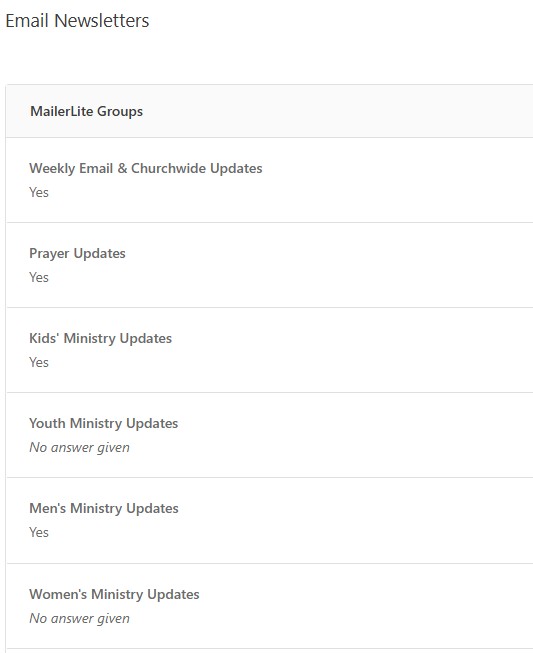
A custom tab in Planning Center with custom yes/no fields for each newsletter - In Mailerlite, we created groups for each email newsletter. It's important that the name of the group and the name of the custom field in Planning Center match exactly. Activepieces will be looking to match these names, and if they're different, the person's profile won't be updated properly.
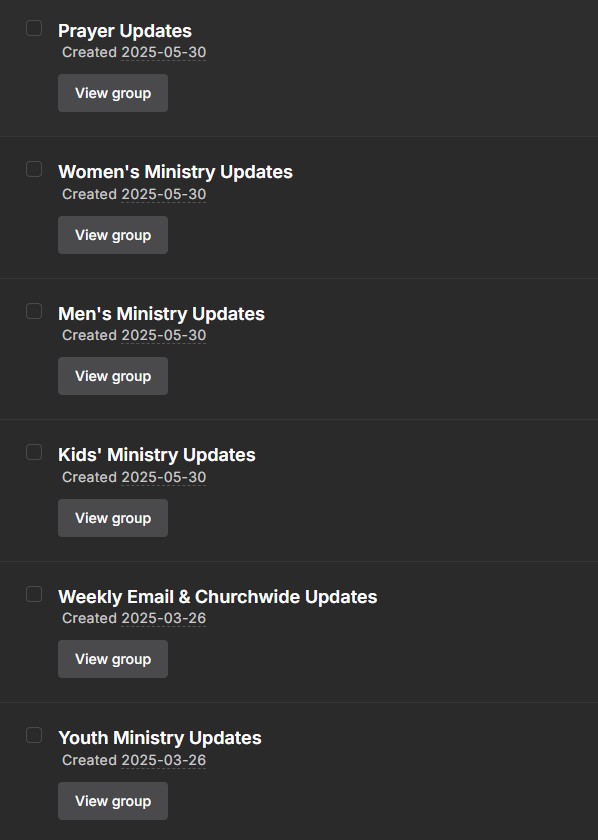
Groups in Mailerlite that match the Email Newsletter custom fields in Planning Center - In Activepieces, we created various "flows" (a "flow" is a series of automated steps, like monitoring a webhook, connecting to an API, etc.) for the different actions that might cause a person's Planning Center profile to be updated.
- If they subscribe to a newsletter
- If they unsubscribe from a newsletter
- If they unsubscribe from all newsletters
- If they update their Mailerlite profile (name, email address, etc.)
- This is not a perfect system - there are errors that can occur as well as situations where manual intervention is required. Therefore, we also created an Excel spreadsheet that gets automatically populated with any errors from Activepieces, as well as updates to names or email addresses in Mailerlite that we'd want to have a staff member verify before making any changes to a Planning Center profile. We keep an eye on this spreadsheet to catch anything that needs manual attention.
That's the setup, but what actually happens when someone takes an action in Mailerlite? Let's use the example of signing up for a newsletter to walk through every step of the automation.
- If someone visits our website and wants to sign up for our newsletter, they're presented with this form, created in Mailerlite.
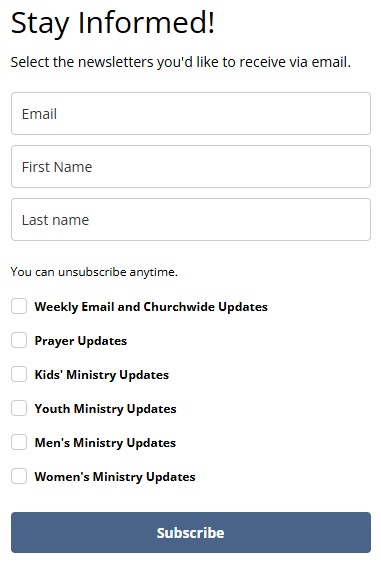
A Mailerlite form embedded on our website that allows people to sign up for email newsletters - They enter their name and email address into the form, then select one or more newsletters they'd like to receive.
- Once the form is submitted, Mailerlite adds the person as a new subscriber and assigns them to groups based on their newsletter selections on the form.
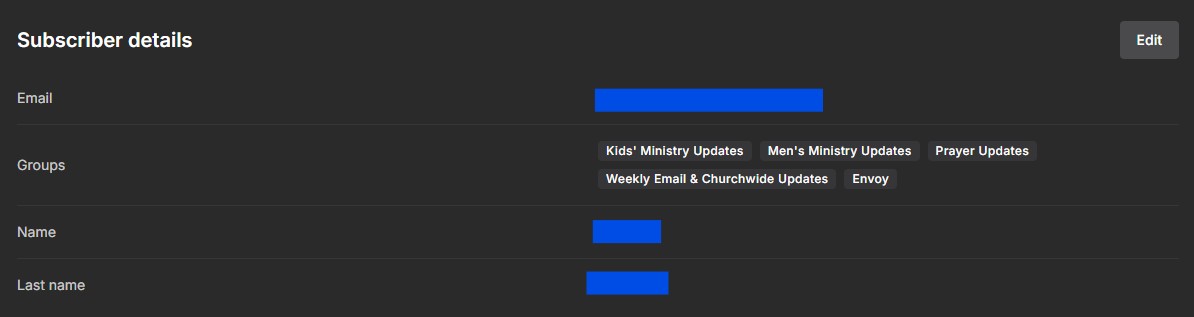
A subscriber profile in Mailerlite - A Mailerlite webhook (subscriber.added_to_group) is triggered when the subscriber is added to the Mailerlite groups that initiates the appropriate flow in Activepieces.
- This particular flow does several things:
- First, it connects to Planning Center's API to check if there's a Planning Center profile with the same name and email address as the Mailerlite subscriber.
- If there is a match, it will attempt to find a custom field in that profile with the same name as the Mailerlite group and change the value of that custom field to "Yes".
- If it doesn't find a profile with a matching email address and name, an error is logged in the Excel spreadsheet that contains the subscriber's name, email address, what newsletters they subscribed to, and what the error was. It does not automatically create a Planning Center profile or change any information in a profile with only a matching name or a matching email address.
- This flow will run for each group that the person has subscribed to.
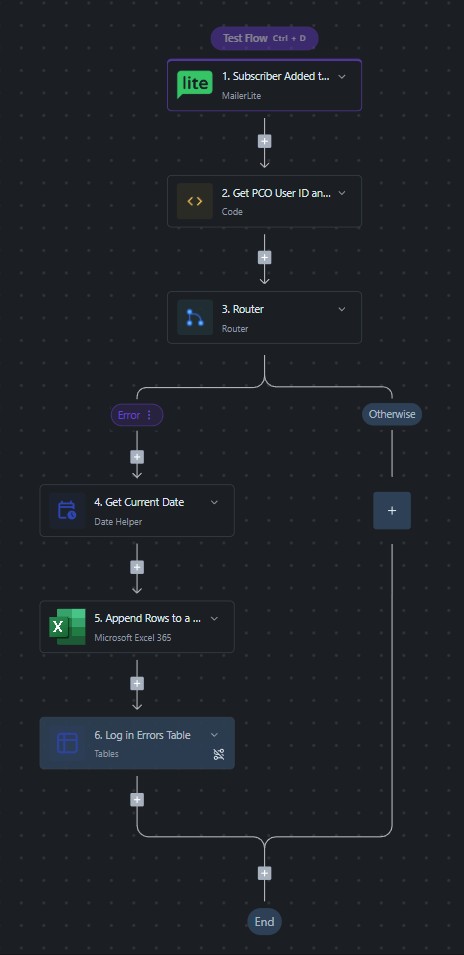
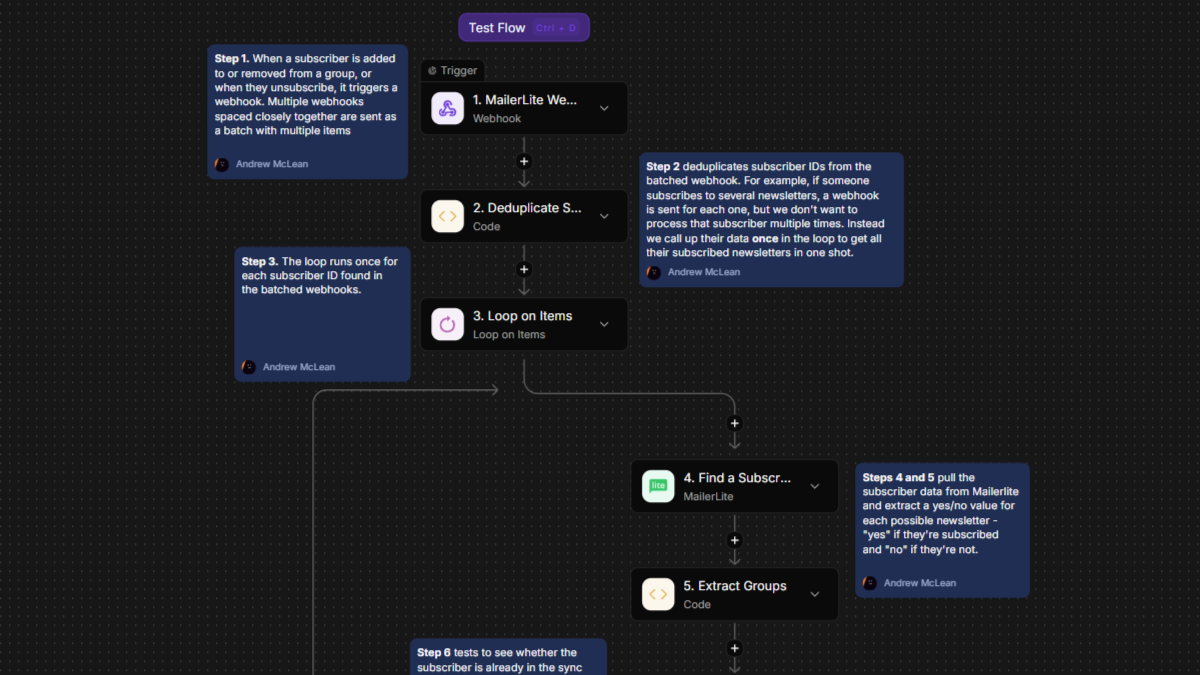
A flow in Activepieces, triggered by a webhook when a subscriber is added to a group
- First, it connects to Planning Center's API to check if there's a Planning Center profile with the same name and email address as the Mailerlite subscriber.
Some of the other situations (like unsubscribing) require slightly more complicated flows, but the end result is the same. As long as the subscriber has a matching email address and name in Planning Center, that profile will stay up to date to show what newsletters that person is subscribed to at any time.
Like I mentioned before, this system isn't fool-proof and doesn't cover every possible scenario, but it still saves an enormous amount of time compared to trying to manually keep Planning Center profiles in sync with Mailerlite subscribers. And for the situations that the automation can't handle, manual intervention is still easy.
For example, if someone subscribes to a newsletter but uses a different email address than what they have in Planning Center, their profile won't update automatically. However, the automation will catch this (with a "no matching email address" error) and add an entry to a spreadsheet. By monitoring the spreadsheet, a staff member can catch these anomalies and take appropriate action.
Build and Break Your Automations
When building any automation, start simple. Get your accounts connected, webhooks firing, and make sure the basics work. Then start finding ways to break your automation. Think about every possible scenario and how your automation will respond. Then, for each of those scenarios, begin to build branches in your flow, or even new flows to handle those situations. And don't neglect building in ways to capture and log errors. Otherwise you'll end up creating more work for yourself if you find out later that things haven't been working the way you thought.
For example, here are my notes for some potentially problematic scenarios for our automation and how I planned to handle them. You'll notice the the first three scenarios have fairly robust plans, but the last three are more band-aids than satisfactory fixes.
Someone subscribes whose email address is not in Planning CenterReturns error and adds error details to "Errors" tableAdmin checks validity of sign up and creates new PCO profile with matching infoSet profile status to "newsletter only"Have PCO automation that changes "newsletter only" to "visitor" if any other activity matches the profile (check-ins, registrations, etc.) in a given timeframe
Someone subscribes whose email address is in Planning Center, but whose name does not match that profilesReturns error and adds error details to "Errors" tableAdmin checks validity of sign up and creates a new PCO profile or updates existing one
Someone unsubscribes from all newslettersRemoves all groups from subscriber in ML and sets status to unsubscribedIF a matching profile (name and email) is found in PCOSets all newsletter options in PCO Profile to "no answer given"
IF no matching profile is found in PCO, logs an error in the "Errors" table in PCOAdmin checks for validity and to see if any changes need to be made in PCO
Someone updates their ML preferences and changes their email addressthis is NOT triggered by subscriber.updated webhook so there's no way to be notified of the changethis can't be mitigated, but at least if they add/remove a newsletter, it will then generate an error because of the email address no longer matching a PCO profile and can be taken care of then
Someone updates their ML preferences and changes their nameNo changes in PCOLogs NEW profile info only in "Subscriber Updates" sheetincludes all newsletters they're receiving, and the current name/emailthere is no way to know WHAT they changed, so admin would need to compare existing data for matching email address
Someone updates their email address in PCONothing can be done right away, but the next time they make a newsletter subscription change an error will appear because of non-matching email address, and the problem can be reviewed by an admin
Even More Details
I'm not going to get into the weeds with exactly how to make the API calls to Planning Center, set up flows in Activepieces, connect a Microsoft account to Activepieces, etc. But I will provide some resources that I found helpful as I got this system set up. If you'd like more details about our exact setup, including the full scripts used to make the API calls and do error checking, send me an email and I'll be happy to share more.
- Planning Center API Documentation
- You'll need to spend some time here to understand exactly how to script your API calls to get and change information in Planning Center.
- Once logged into your PCO Developer account, you can also use their API Explorer to find specific IDs for each item you might want to interact with in Planning Center (like a specific custom field).
- How to register an app in Microsoft Entra ID
- You'll need to do this in order to link an Excel spreadsheet to Activepieces.
- Alternatively (and much simpler!), you can use the built-in Tables feature of Activepieces to capture error logs. You'll just need to make sure someone is periodically logging into to Activepieces to check this table and catch any situations that require manual intervention. Or you could probably automate sending an email any time an error is logged. This is the power of automation!
- Activepieces Documentation
- This was really helpful for understanding some of the tools available in Activepieces flows.
How are you automating?
Are you already automating workflows for your organization? What ways are you finding it helpful for reducing manual, repetitive tasks? Send me an email ([email protected]) and let me know!